Your pipeline
How Opportunities flow through stages, and how to make those stages match the way your team sells.
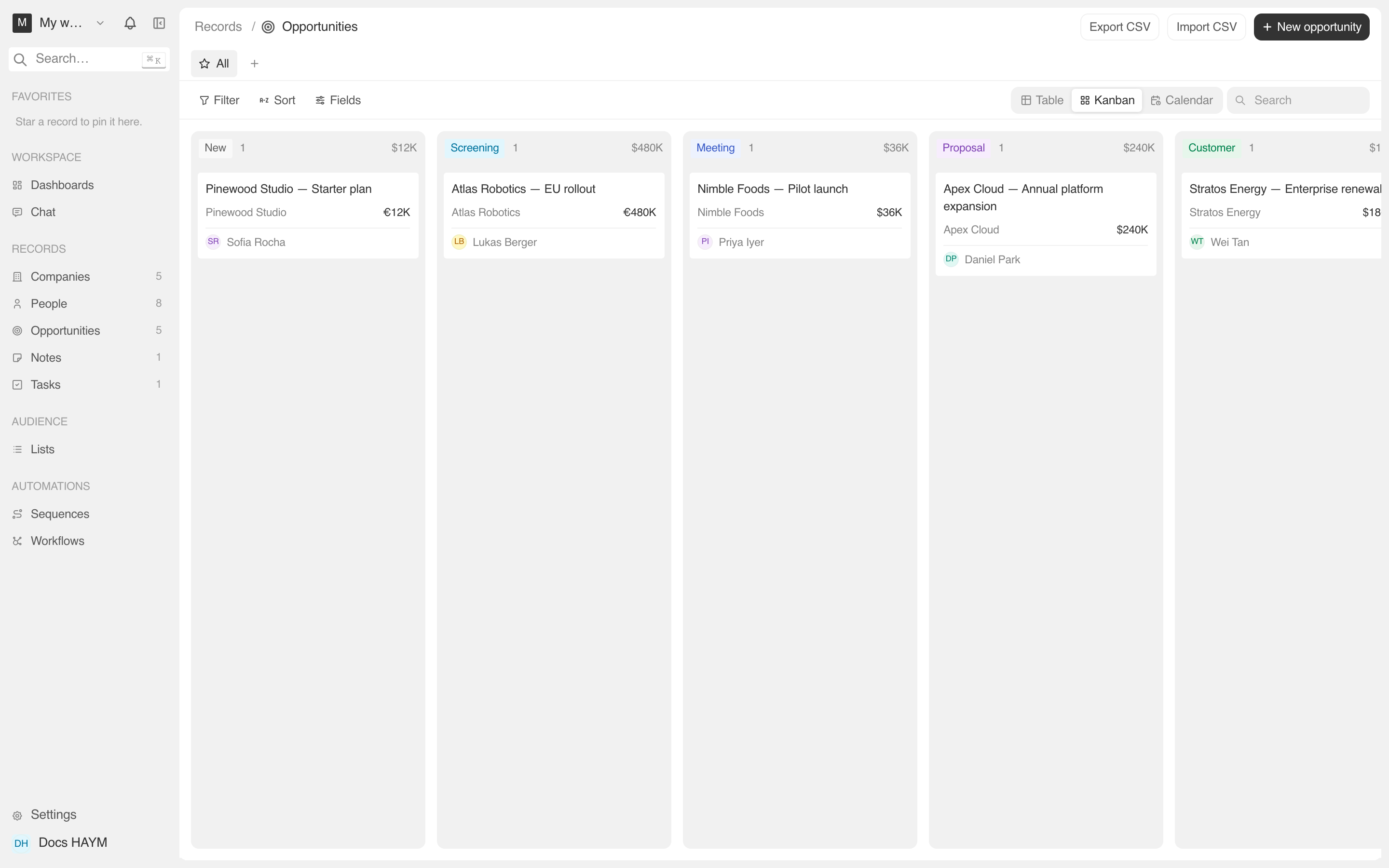
The pipeline is the lifecycle every Opportunity goes through, from first contact to closed won (or lost). Corto ships with a five-stage default — New / Screening / Meeting / Proposal / Customer — and lets you customize it from Settings without touching code.
The default pipeline
Every workspace is seeded with these five stages when it's created:
| Stage | Color | Meaning | Terminal? |
|---|---|---|---|
| New | gray | Just landed — not yet qualified. | — |
| Screening | sky | Initial qualification — checking fit. | — |
| Meeting | blue | A scheduled or completed discovery call. | — |
| Proposal | purple | A written proposal is in front of the buyer. | — |
| Customer | green | Closed won. Recurring revenue starts. | Won |
You can keep this exactly as-is or replace it entirely — Corto doesn't treat the seed stages as special. Renaming Customer to Closed Won, splitting Meeting into Discovery + Demo, or adding a Lost terminal stage all happen the same way: in Settings → Pipeline stages.
Where the pipeline shows up
Three primary surfaces read from the pipeline config:
Kanban view — one column per stage, drag-to-move. The board lays out left-to-right in the order you set.
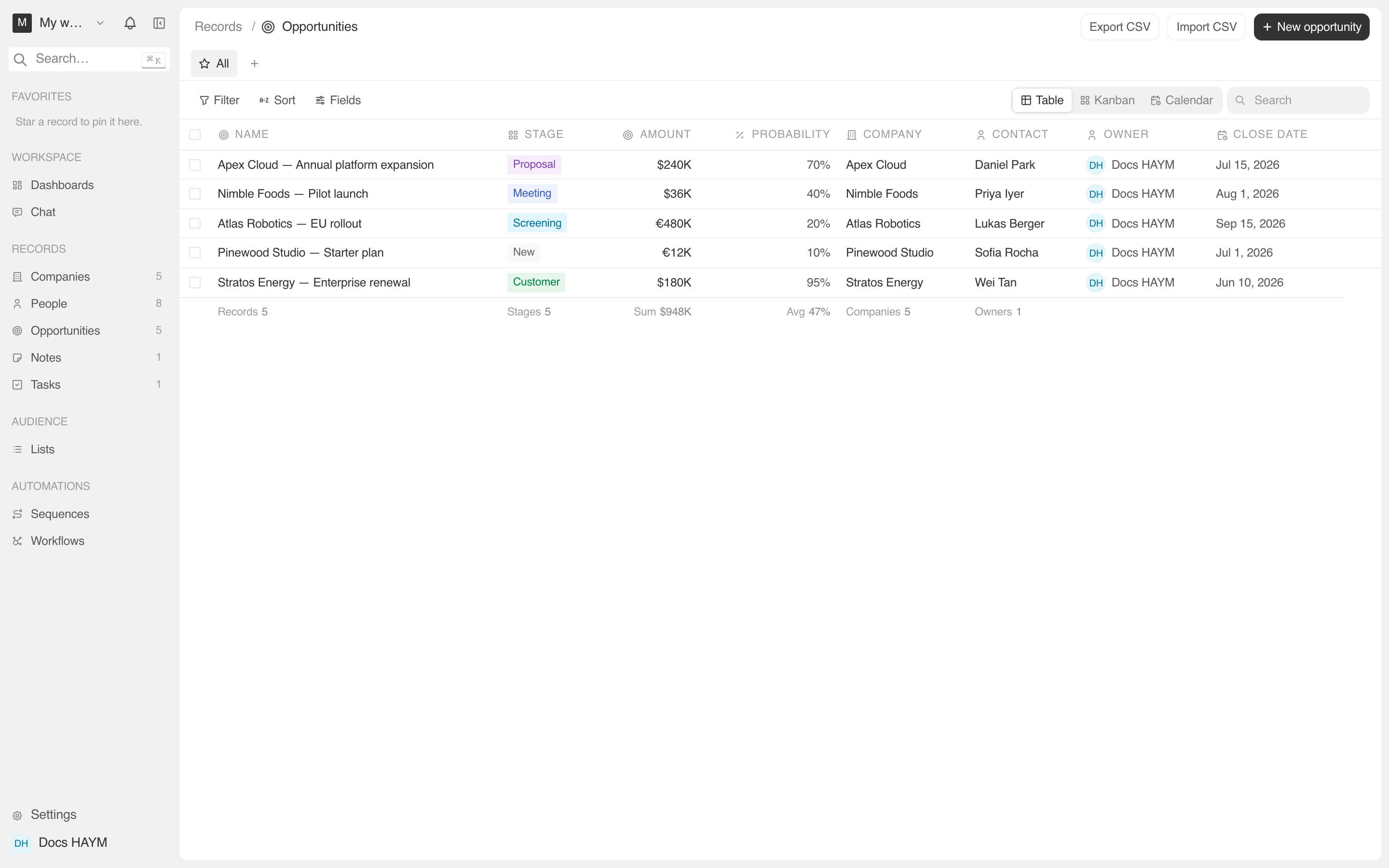
Stage pill — the colored tag on every Opportunity row in tables, side panels, and detail pages. Its color and label come from your config, so a rename in Settings updates the pill everywhere.
Pipeline summary on the dashboard — counts and sums by stage,
plus total open pipeline vs closed won. Driven by the terminal flag
on each stage (any stage marked won rolls into closed; any stage
marked lost is excluded; everything else is "open pipeline").