Working in the Kanban view
How to use the Kanban board on Opportunities — drag to change stage, read column totals, recover deals on archived stages.
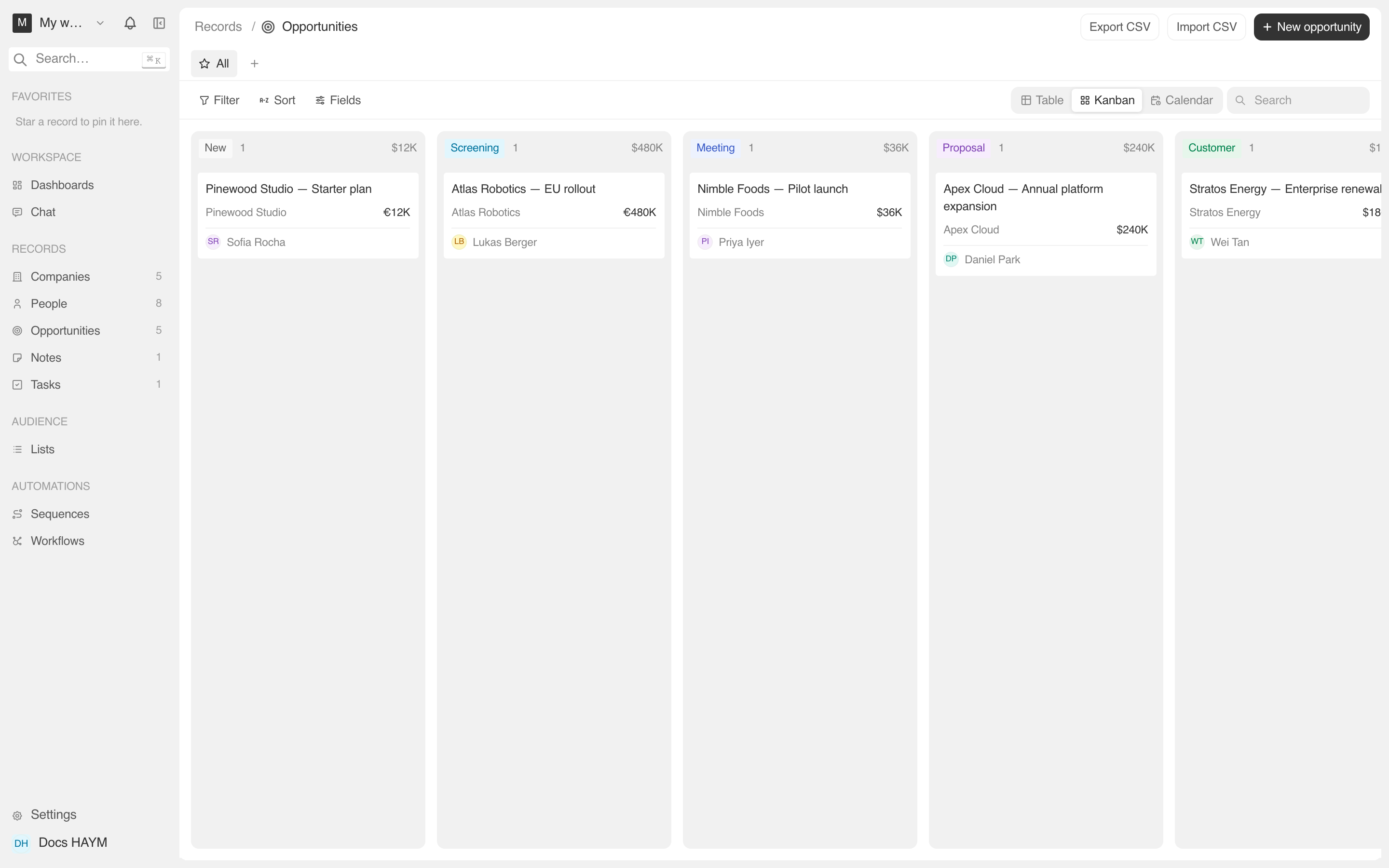
The Kanban view is the natural way to look at an Opportunity pipeline: one column per stage, one card per deal. It's the default view when you open Opportunities for the first time.
Switching to Kanban
On the Opportunities list, the toolbar carries a view toggle: Table · Kanban · Calendar.
Click Kanban. The board lays out, column-per-stage, from the pipeline config — left to right matches your configured order.
The choice persists per-user-per-object, so the next time you open Opportunities you land back on Kanban.
What each column shows
Top to bottom of every column:
| Slot | Content |
|---|---|
| Header pill | The stage's color and label, from your pipeline config. Rename / recolor it from Settings and the header updates automatically. |
| Count | How many deals are in this column. |
| Sum | The total currency amount in this column (in your workspace's default currency). |
| Cards | One per Opportunity, newest at the top. |
A column header for an archived stage only appears if there are still deals sitting on it — see Recovering deals on archived stages below.
Moving a deal between stages
Click and hold a card, then drag it toward a different column.
While dragging, the grabbed card stays in its original column at 30% opacity. The floating overlay tracks your cursor. The target column's outline darkens once your cursor enters it.
Drop anywhere inside the target column's body.
The card lands in the new column instantly, and the count/sum at the column header updates.
The move also writes an activity entry: Moved [deal name] to [new stage]. You can see it on the Opportunity's Recent activity card.
Aborting a drag
- Drag the card back to its original column and release.
- Or release outside any column — the card snaps back.
Recovering deals on archived stages
If you archive a stage but some Opportunities still point at it, those deals get their own trailing column on the right of the board with the archived stage's name (rendered struck-through).
You can:
- Drag them out to any active column.
- Open each card and change the stage from the side panel.
Once the last deal is moved out, the archived column disappears from the board. (It's still listed in Settings → Pipeline stages → Archived in case you want to bring it back.)
Searching and filtering
The toolbar above the board carries the same Search, Filter, and Sort controls you have in the table view. Whatever you set there narrows the cards across every column.
This is useful for things like:
- "Show me only deals I own" — Filter on Owner = me.
- "Show only deals closing this quarter" — Filter on Close date ≤ 2026-09-30.
- "Find Acme" — type Acme in the search box.
The board re-renders without losing the column structure — each column just shows the filtered subset.
Keyboard shortcuts on the board
| Key | Action |
|---|---|
| ⌘K | Open the command palette (search records, jump anywhere). |
| / | Focus the search box in the toolbar. |
| ↩ with a card focused | Open the side panel for that card. |
Drag with intent. The board uses a 4px activation threshold so micro-movements don't accidentally drag. If a card seems unresponsive, you're not moving far enough before releasing.
Long columns scroll. Each column body is independently scrollable, so a column with 100 deals doesn't push the rest of the board off- screen.