Customizing your pipeline stages
Add, rename, reorder, recolor, archive, or restore opportunity stages from Settings.
The default 5-stage pipeline is a starting point. Real sales teams have anywhere from 3 to 10 stages, with specific labels and colors that mean something to them. You can shape the pipeline to match without ever leaving Settings.
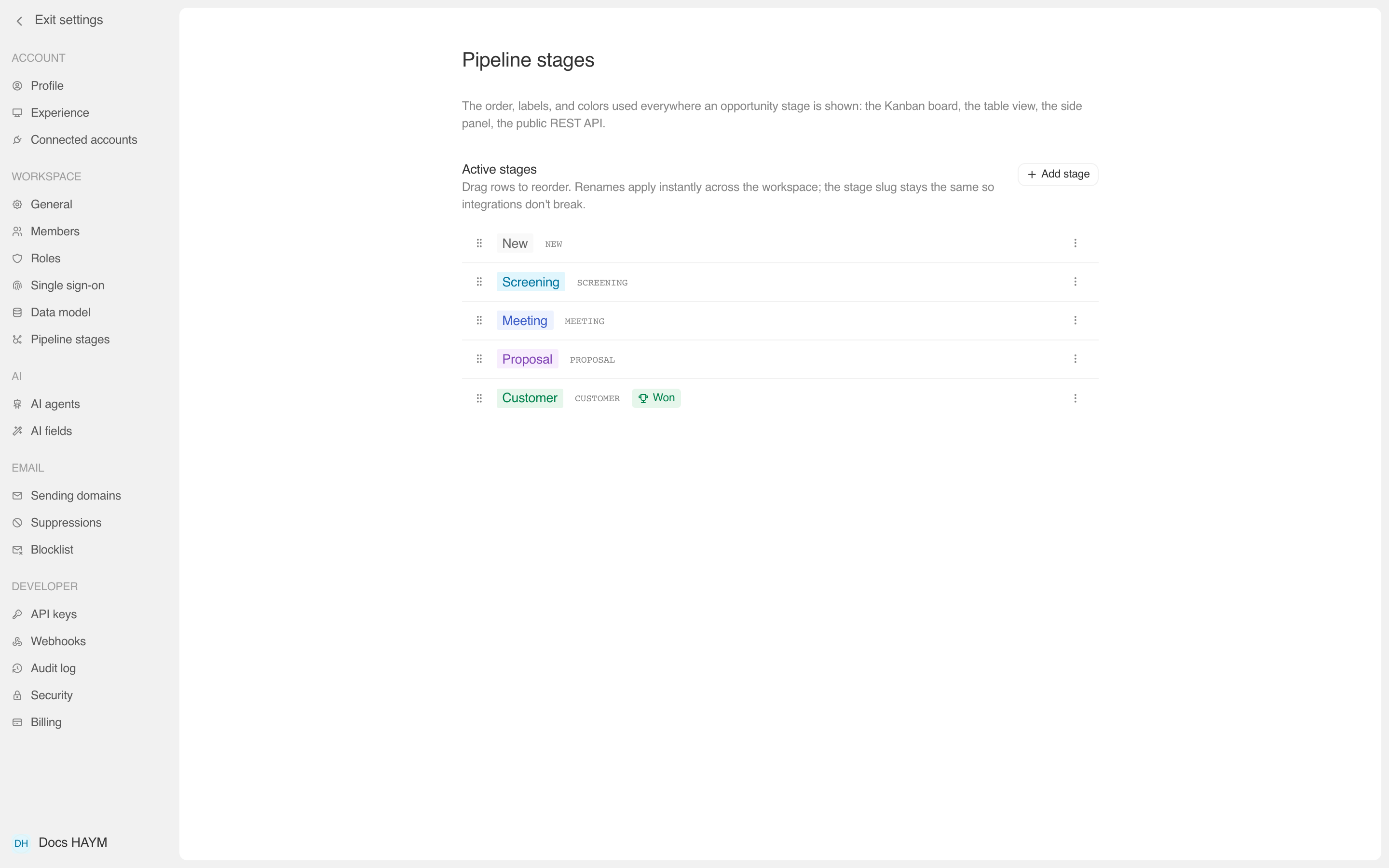
Opening the editor
Settings → Pipeline stages (under the Workspace group). The page shows two lists:
- Active stages — what shows in the Kanban / dropdowns / Settings. Listed in pipeline order.
- Archived — stages that used to exist. Records still pointing at archived stages keep their pill, but the stage is no longer offered as a target.
The five things you can change
Reorder
Grab a row by the ⋮⋮ drag handle on the left and drop it into the new position. The order updates instantly and propagates everywhere — the Kanban columns reorder, the dropdown shows the new sequence, and the pipeline summary on the dashboard reflects it on the next refresh.
Rename
Click the stage's pill (the colored label). It swaps into an inline input focused for editing. Type the new name. ↩ to save, Esc to revert.
Renames are purely cosmetic. The stage's underlying slug (the
all-caps key like PROPOSAL) stays the same so saved views and
filters that referenced the old name keep working, external
integrations (Zapier, the REST API) get the same stable value, and
historical activity entries render with their original label —
"Moved Acme to Proposal" stays "Moved Acme to Proposal" even if
you later rename Proposal to Negotiation.
Recolor
Click the colored swatch in the row's action area (left of the ⋯ menu). The palette dropdown shows the eight available tones: gray, sky, blue, purple, green, red, yellow, orange. Pick one. The pill on every Opportunity using this stage updates instantly.
The palette is fixed by design — limiting the colors keeps the visual identity coherent. We don't ship a hex picker.
Mark a stage as Won or Lost
Click the ⋯ menu on a stage row → Mark as Won or Mark as Lost.
These are the terminal states. They affect the dashboard:
- Anything sitting in a Won stage rolls into "Closed Won" revenue.
- Anything in a Lost stage is excluded from the open pipeline number.
- Stages with neither flag (the typical mid-pipeline like Meeting and Proposal) sum into the Open pipeline number.
You can have multiple Won stages (e.g. Closed Won — New and Closed Won — Renewal) and multiple Lost stages (e.g. Lost — No budget and Lost — Wrong fit). The math still works.
To unset, open the ⋯ menu again and click Unmark as Won / Unmark as Lost.
Archive
Stages you no longer want to use can be archived — soft-deleted. They disappear from the Kanban and dropdowns, but every Opportunity already sitting on that stage keeps its pill.
To archive: ⋯ menu → Archive. The row moves to the Archived section at the bottom of the page. To restore: click Restore on the archived row.
You can't archive the only active stage — the pipeline needs somewhere for new deals to land. You can't archive the only Won stage either — the dashboard needs somewhere to count Closed Won. Mark another stage as Won first.
Adding a new stage
Click "+ Add stage" in the Active stages section header.
The dialog asks for three things: label, slug, and color.
Fill in the Label — the human name (e.g. Negotiation).
This is what your team sees on the Kanban header, in dropdowns, on the side panel, in the table.
Set the Slug — the stable API identifier.
Auto-uppercases what you type and replaces non-alphanumeric characters
with _. Must be unique within your workspace. Once created, the
slug can't be changed.
Pick a Color from the palette dropdown.
You can change this later via the swatch on the row.
Click "Add".
The new stage lands at the end of the Active stages list. Drag it into position if it belongs somewhere else.
A typical workflow for a new B2B SaaS team's first customization:
What changes immediately, what waits
| Action | Reflected immediately in | Refreshes on next page load |
|---|---|---|
| Rename | Side panel, table cell, detail page, Kanban header | Dashboard pipeline summary |
| Recolor | Side panel, table cell, detail page, Kanban header | Dashboard pipeline summary |
| Reorder | Settings page, Kanban columns | Dashboard, dropdowns in open form drawers |
| Archive | Settings page, Kanban (column hidden), dropdowns | Existing opportunities sitting on the archived stage keep showing their pill — they just can't be re-saved to that stage |
| Add stage | Settings page, Kanban columns | Dropdowns in open form drawers |
If something looks stale, refreshing the page picks up the latest config. Everything except the dropdown in an already-open form drawer is reactive.
Why the slug can't change
The slug is what every other system uses to refer to a stage — the public REST API, Zapier webhooks, saved view filters, every historical activity event. Changing it after creation would break:
- External integrations that filter on
stage = "PROPOSAL" - Saved views like "Deals in Proposal stage"
- Activity entries that already captured "Moved Acme to PROPOSAL"
If you genuinely need a slug change (rare), the workflow is:
This way the historical record (saved views, activity, integrations) keeps working, and the active surface uses the new slug.
What's next
Adding people, opportunities, notes from a Company page
Every section on a Company page has a "+" button so you can attach a related record without leaving the page.
Working in the Kanban view
How to use the Kanban board on Opportunities — drag to change stage, read column totals, recover deals on archived stages.