Editing fields inline
Click any field on the side panel or detail page to edit it. Commit on Enter or blur, revert on Esc.
Every editable field on a record's side panel or detail page is click-to-edit. You don't navigate to an "edit mode" — you click the value, type, hit ↩, and it's saved. The change appears in every list, panel, and detail surface that's showing this record, immediately, before the server has even acknowledged the request.
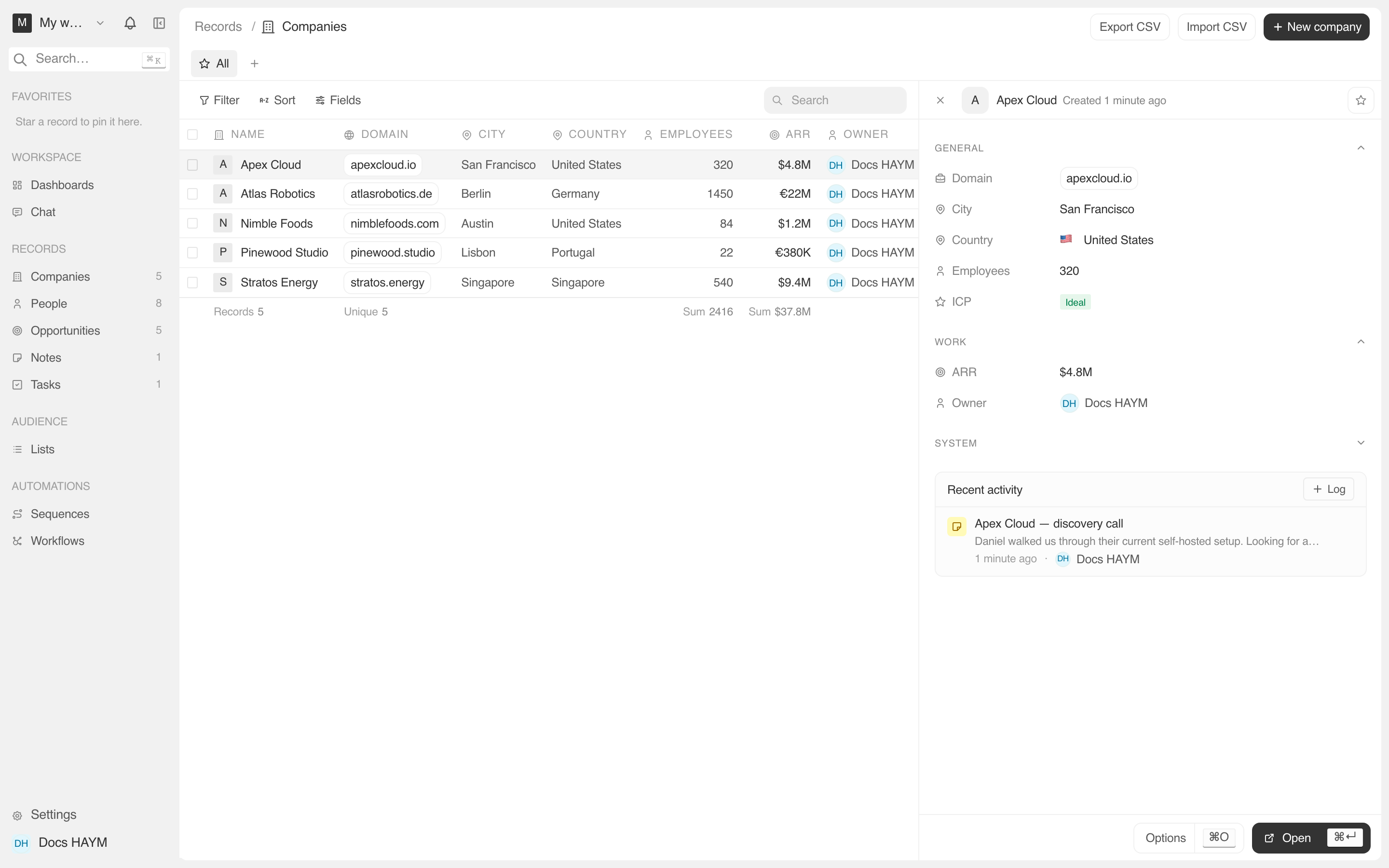
The basic edit flow
Hover the field.
The background eases to a subtle gray to signal the row is editable.
Click the value.
The value swaps for an input, focused with the existing text selected.
Type the new value.
Press ↩, or click elsewhere.
Saved. The cell flips back to read mode. The pill / link / formatted display rebuilds from the new value.
At any point, press Esc to revert without saving.
Behind the scenes, the change is optimistic. The cache flips to the new value before the network round-trip, then reconciles on the server's response. If the server rejects the change you see a toast and the value visibly reverts.
Field-by-field behavior
Different field types have slightly different editors:
| Field type | Editor | Commit rules |
|---|---|---|
| Text (Name, Job title, City) | Single-line input | ↩ or blur |
| Multi-line text (Tagline, Note body) | Sticky textarea | ⌘↩, or blur |
| URL (Domain, LinkedIn) | Single-line input | ↩ or blur. The pill rebuilds as an external link. |
| Single-line input | Same — the pill becomes a mailto: link. | |
| Phone | Single-line input with tel input mode | ↩ or blur |
| Number (Employees, Probability) | Numeric input | ↩ or blur. Empty → null. |
| Currency (ARR, Amount) | Numeric input. Empty value renders as a faint — rather than $0. | ↩ or blur |
| Country | Combobox with flag emoji + ISO search | See Country picker |
| Stage | Pill that opens a select. Options come from your workspace's pipeline config. | Click an option |
| Owner / Assignee / Account owner | Member picker | Click a member |
| Date (Close date, Due date) | Date picker | Pick a date |
Side panel vs detail page
The same fields are editable in both places. The differences:
- Side panel uses a compact field row (40px tall) — better for one-off tweaks while you're scanning a list.
- Detail page uses a wider editable row with a label column on the left — better when you're building a record from scratch or editing many fields in sequence.
Both surfaces share the same optimistic cache, so a field you edit on the side panel updates the detail page version immediately.
What's not editable inline
A few things still need a full form (the drawer that slides out from the right):
- Creating a new record. Use + New at the top of the list or the per-section "+ Add" button on a record page.
- Composing a note's rich-text body — the inline editor wouldn't have room for slash commands and block formatting.
- Logging a call — needs its own structured fields (direction, duration). See Log a note, task, or call.
- Renaming a pipeline stage — handled in Settings → Pipeline stages.
Common gotchas
Empty currency cells display a faint —, not $0. If you want a
deal to count as zero, the field saves as null when you clear it — the
API treats nulls as "unknown amount yet" rather than "this deal is
worth $0". Reporting math ignores nulls.
The Country field accepts free text for backwards compatibility, so rows that existed before the country combobox shipped still show whatever was typed. New entries are constrained to the ISO 3166 list — see Country picker.
Optimistic updates roll back on conflict. If two teammates edit the same field simultaneously and the server rejects your write, the field visibly reverts. Refresh and try again.